 TaskFlow
Everything you need to do. Shaped your way.
Add a task in one line, see your whole day at a glance, and get reminders that arrive on time. Then turn any list into its own tracker: bills with amounts, clients with phone numbers, shopping, study, travel.
- Free
- No account
- No tracking
- Works offline
Type it the way you say it
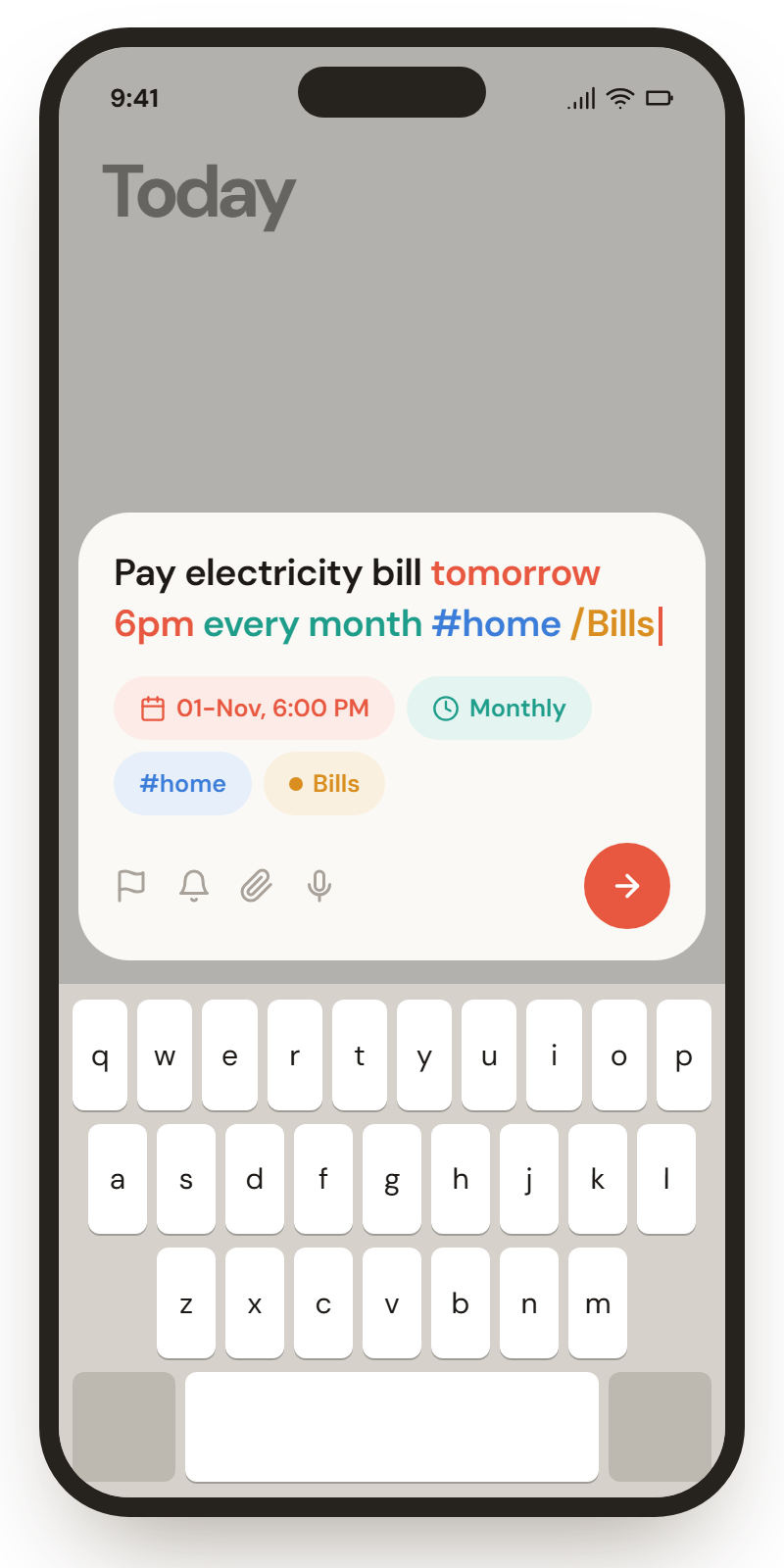
No forms to fill. Write one line and TaskFlow understands the date, time, repeat, tag and list, while you type.
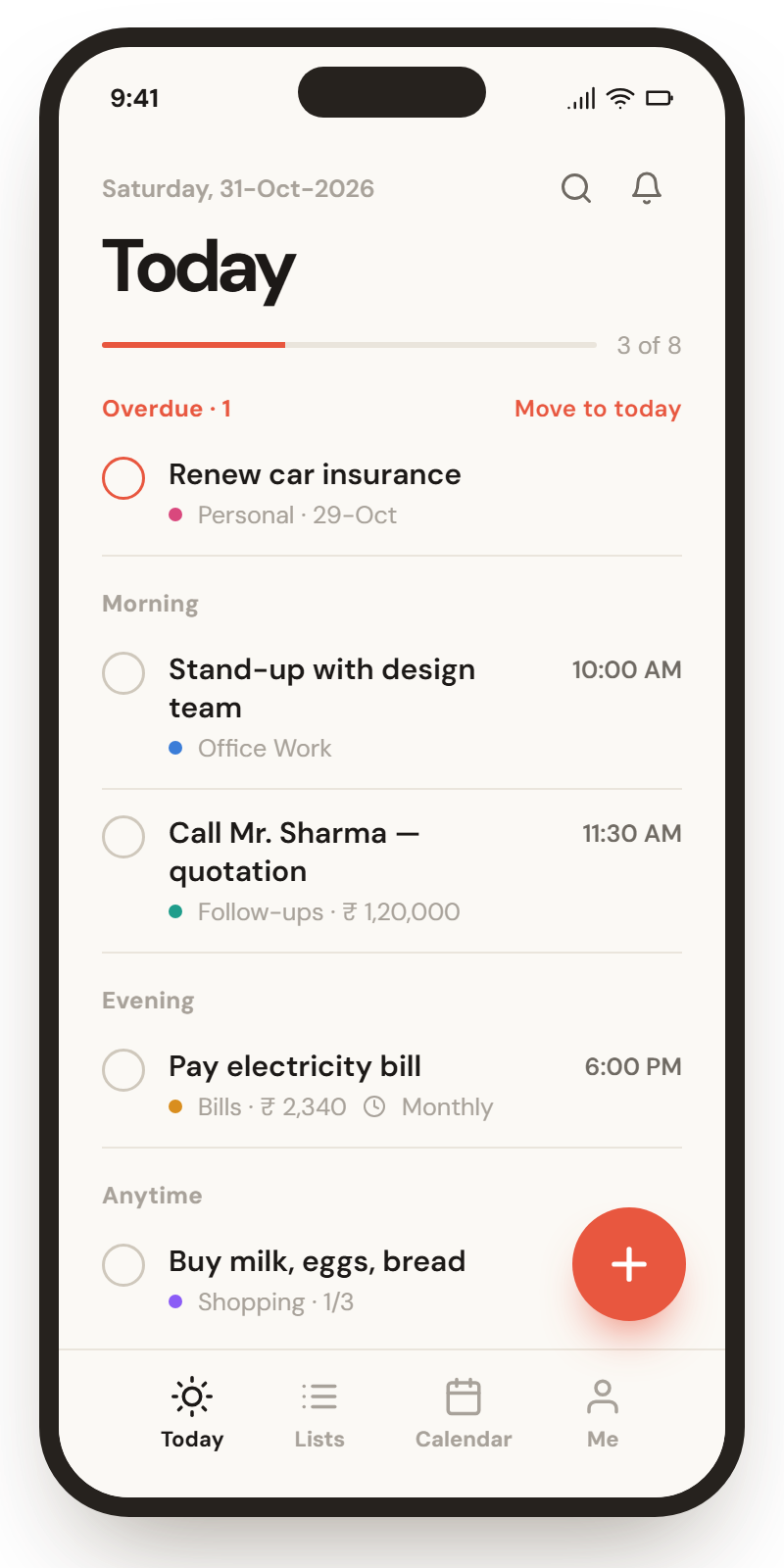
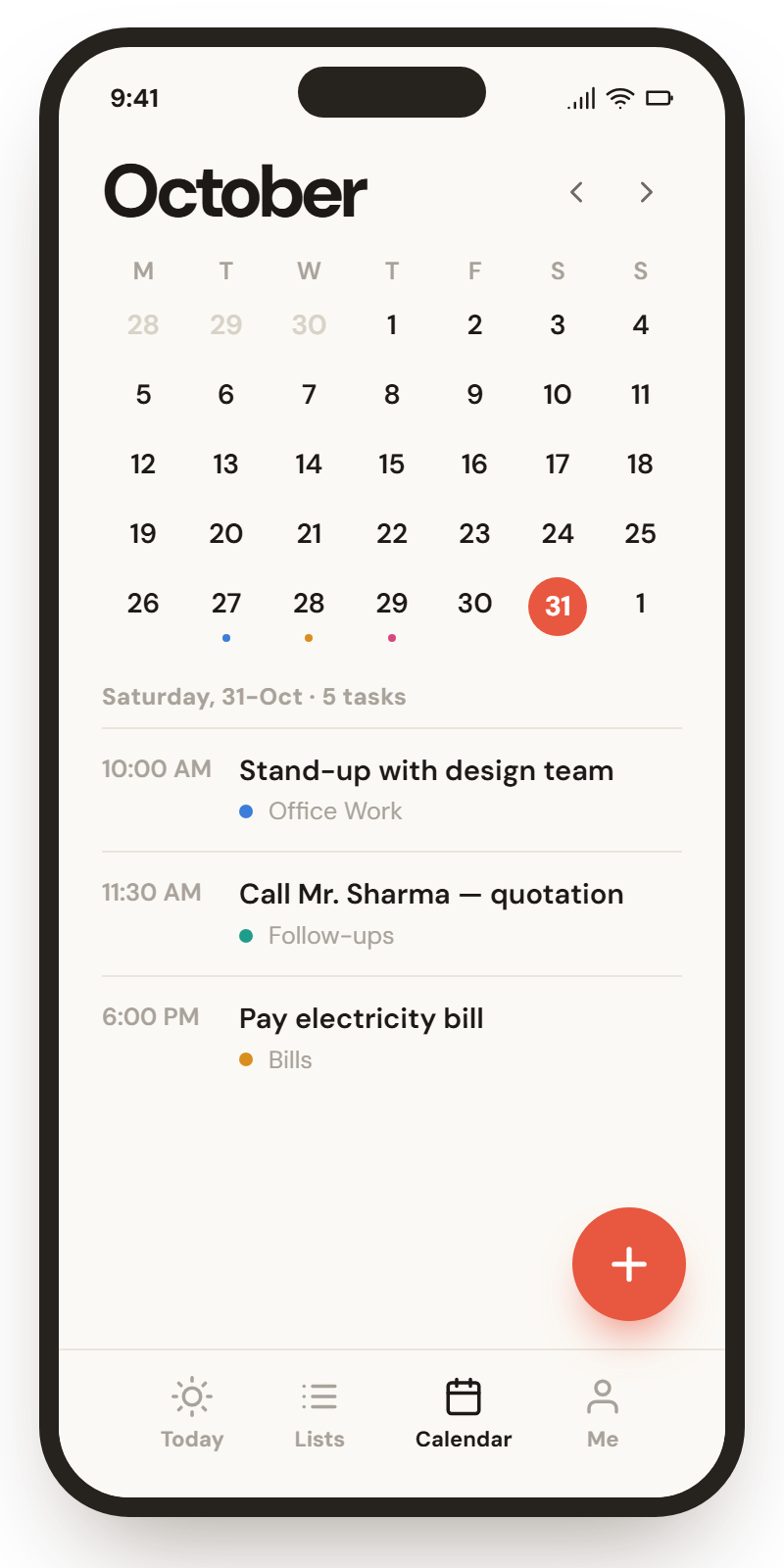
Your whole day, in one calm list
Today brings together what's due from every list, so you never have to check five places. Overdue tasks sit on top, ready to move.
- Move to today pulls everything late into today, with Undo.
- Swipe right to finish, swipe left to reschedule.
- Plan my day when the list is empty, from what's coming up.
Lists that fit your work, not the other way round
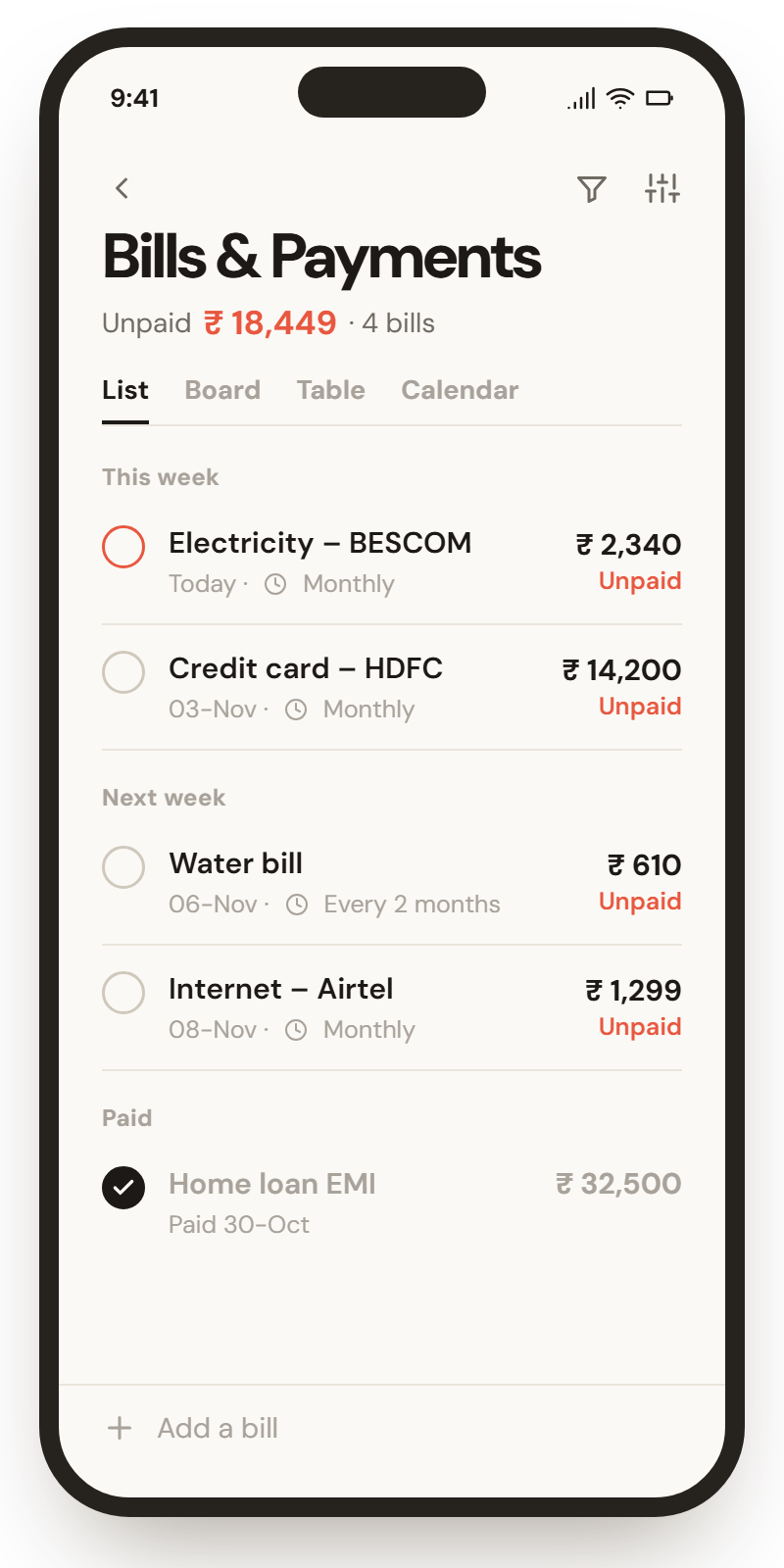
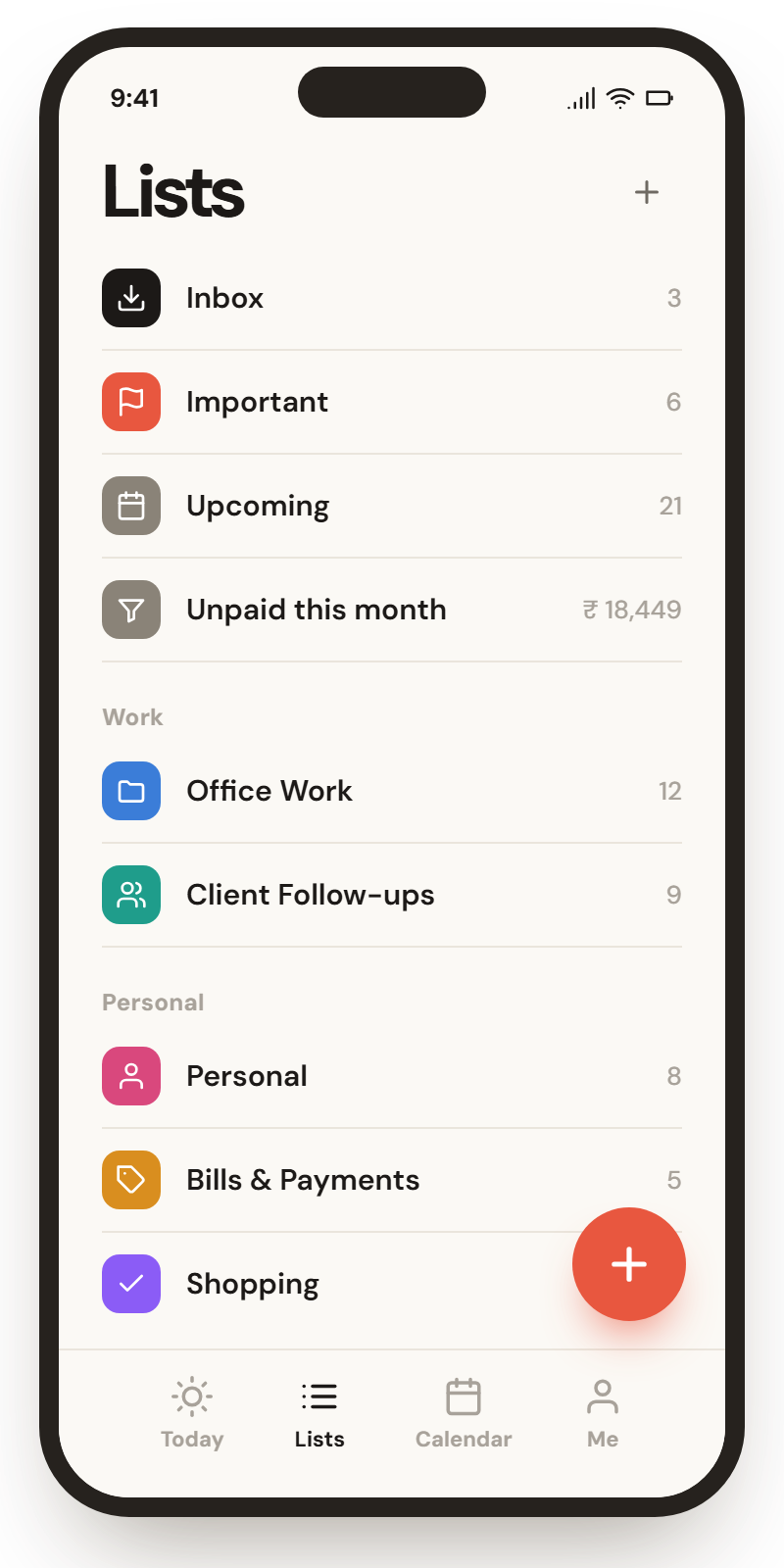
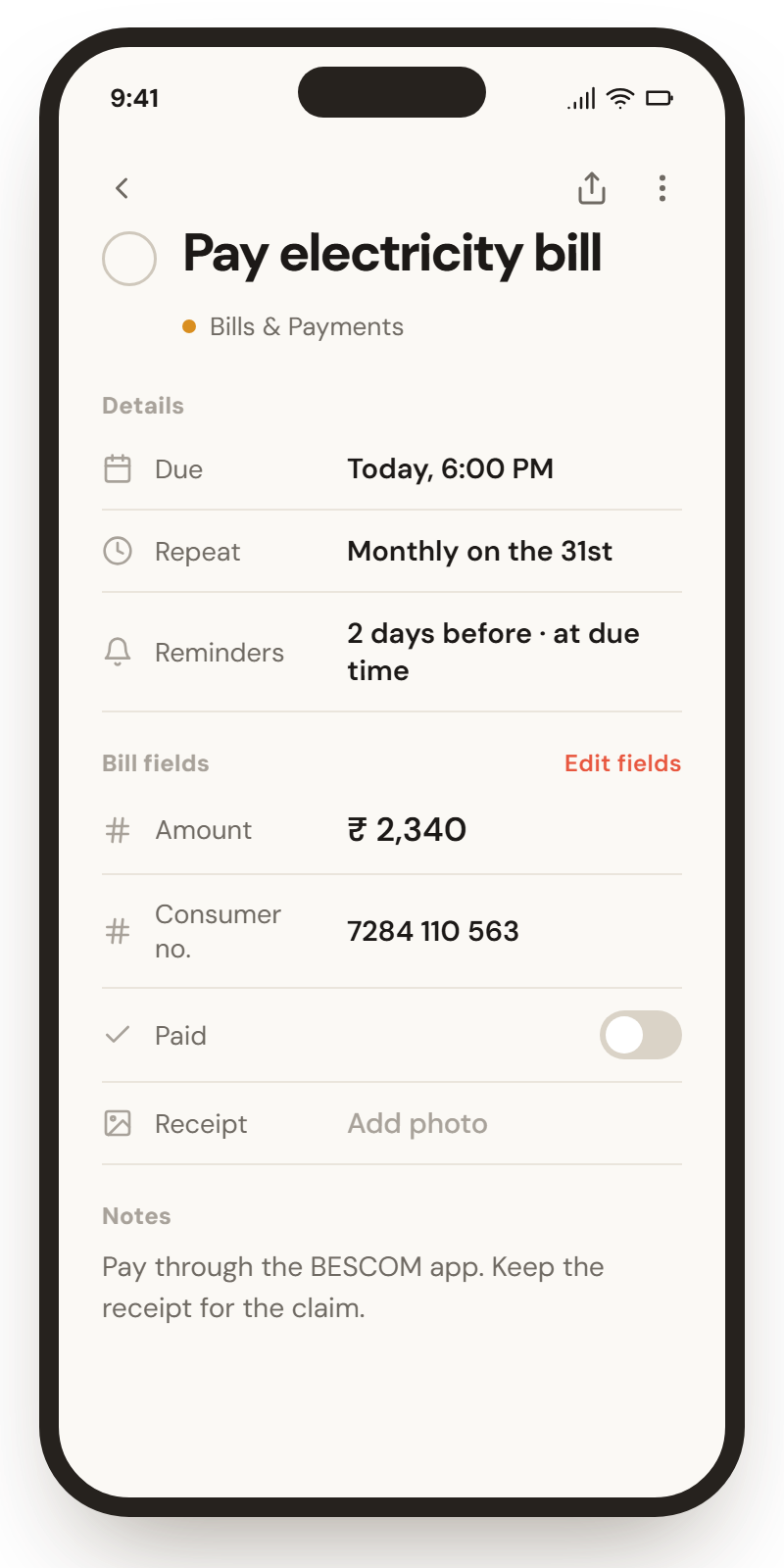
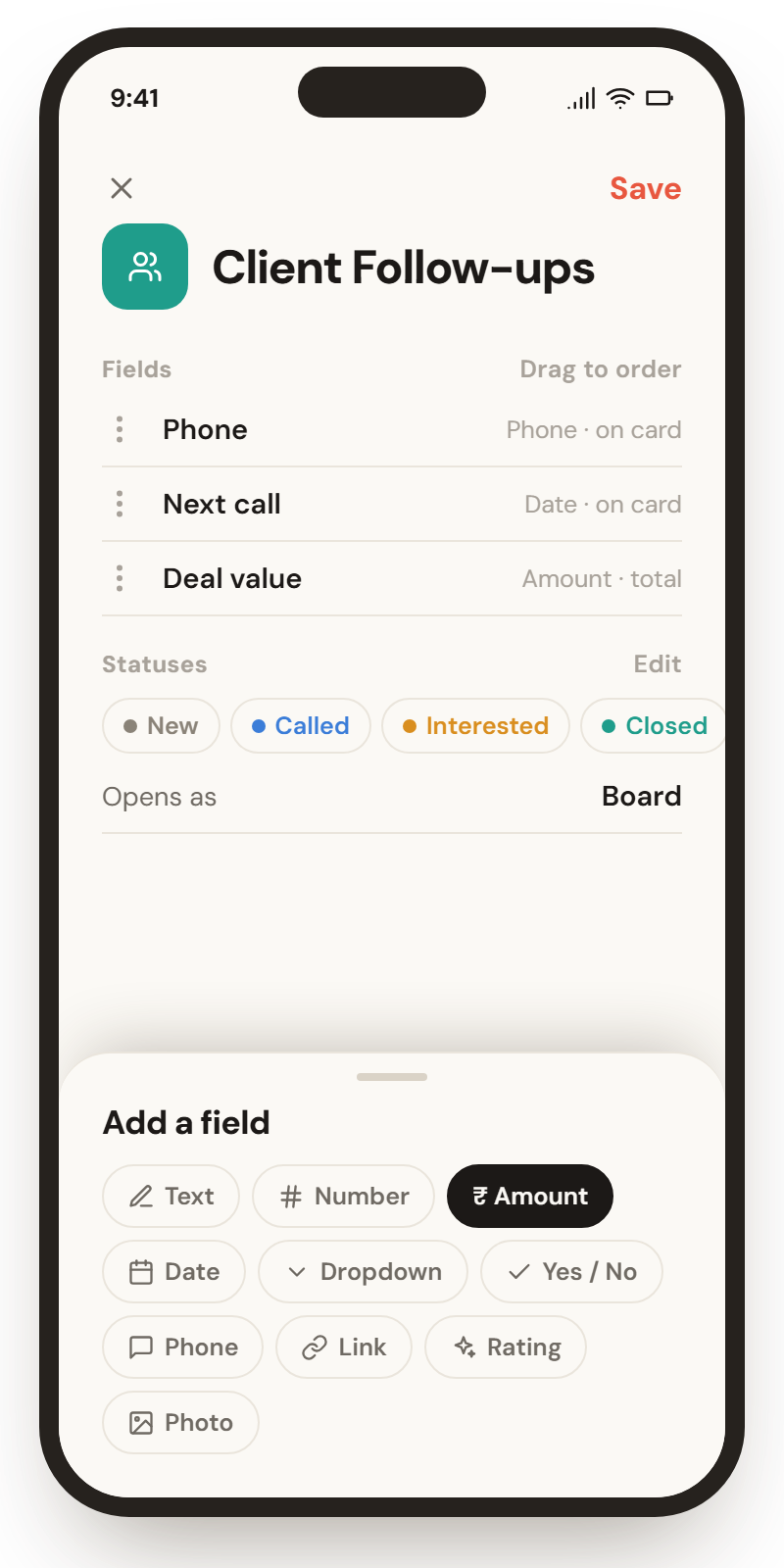
A new list starts as a plain to-do list. Add the fields you need and every task in it gets them, with totals at the top.
- Show chosen fields right on each row, like Amount and Paid.
- Totals such as “Unpaid ₹ 18,449” or open deal value.
- Mark a field required and the task can't be finished without it.
See a list the way that helps
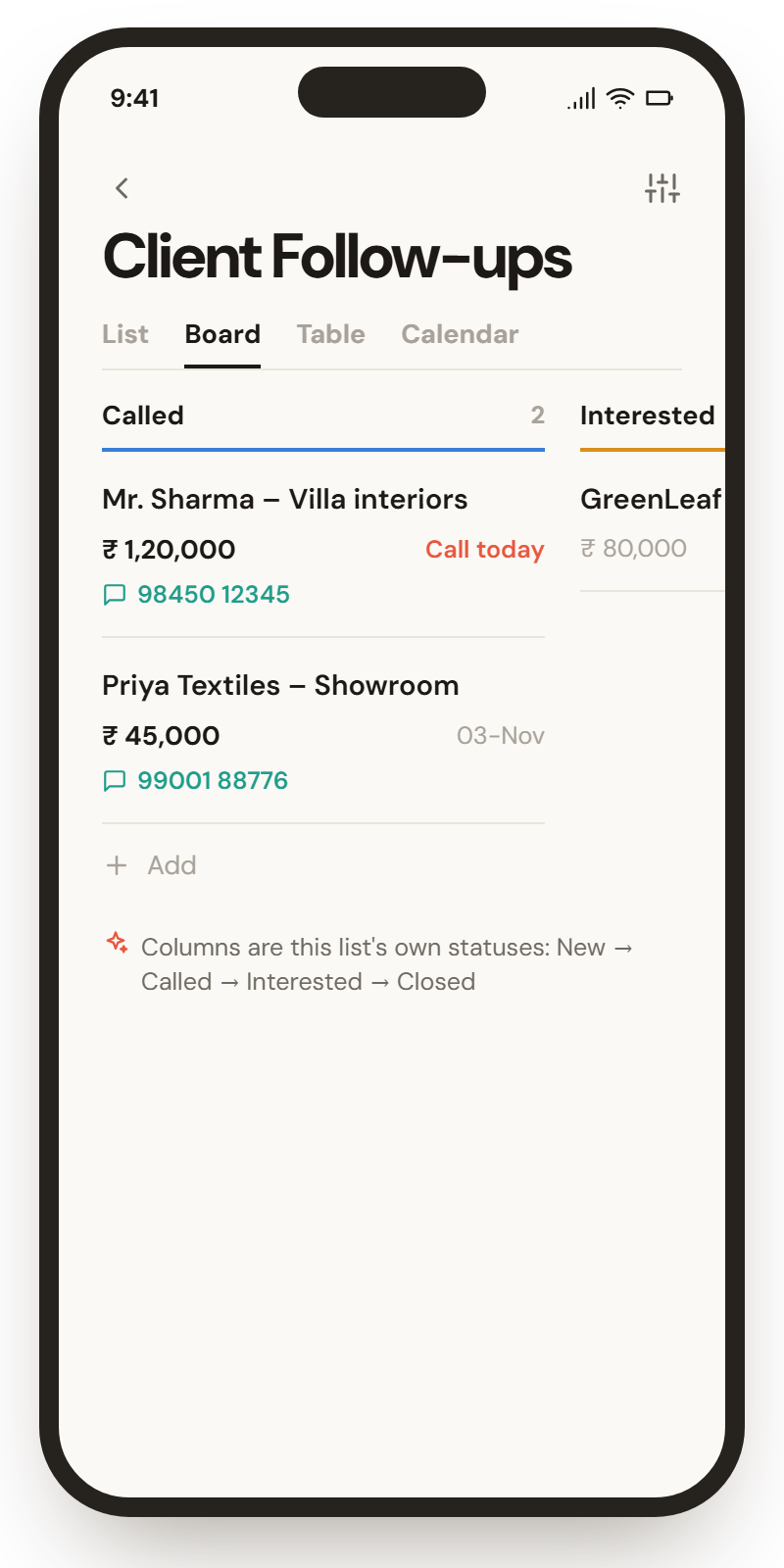
Every list has its own statuses, so a client list can go New → Called → Interested → Closed while bills stay Unpaid → Paid.
Reminders that arrive on time, every time
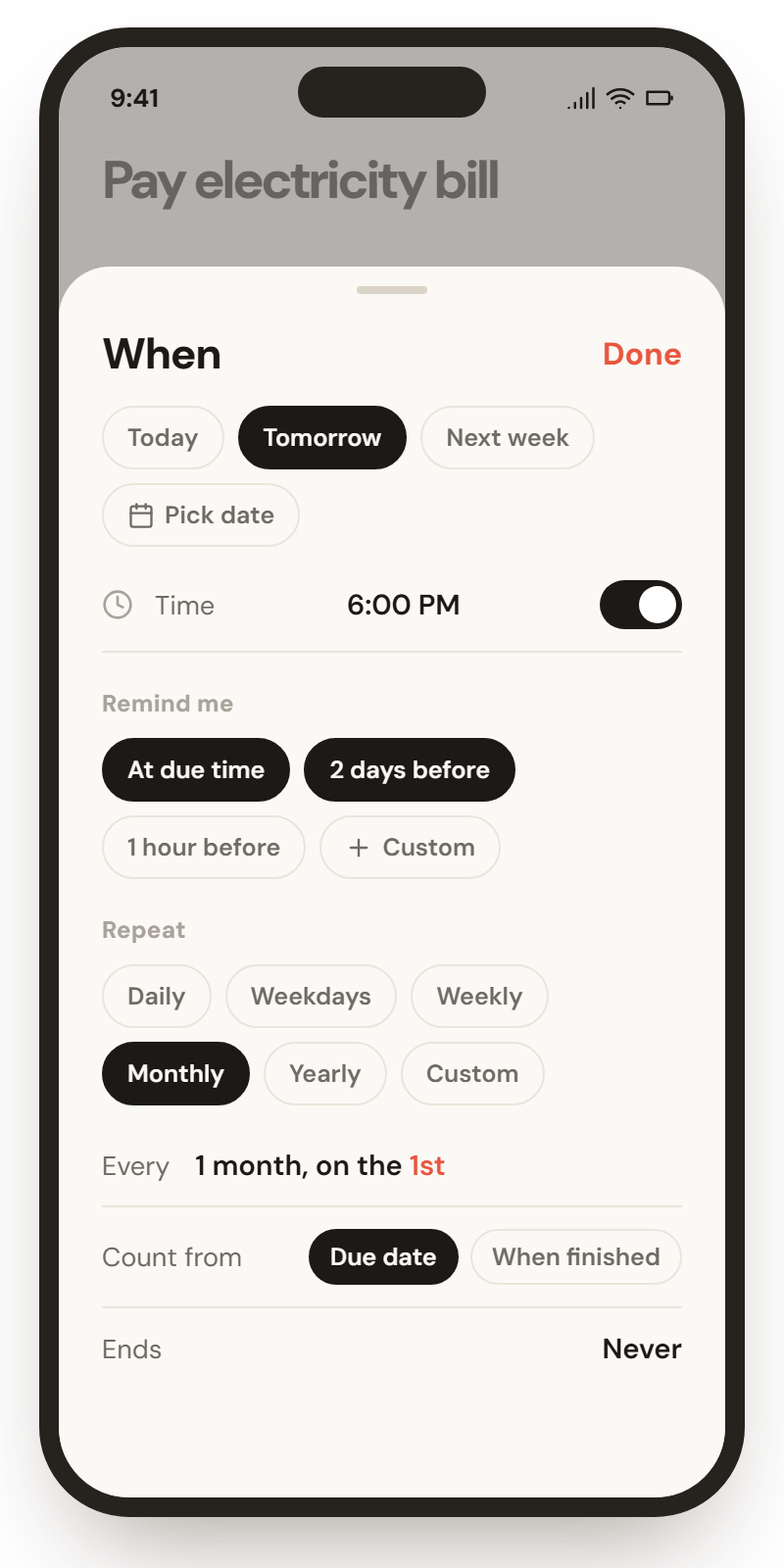
Set a date, a time and as many reminders as you like. They work offline and are set again after your phone restarts.
- At the due time, 2 days before, 1 hour before, or any date you pick.
- Repeats: daily, weekdays, monthly on the 1st, yearly, or your own rule, counted from the due date or from when you finish.
- Done, Snooze, Tomorrow right from the notification.
- An optional morning summary of your day.
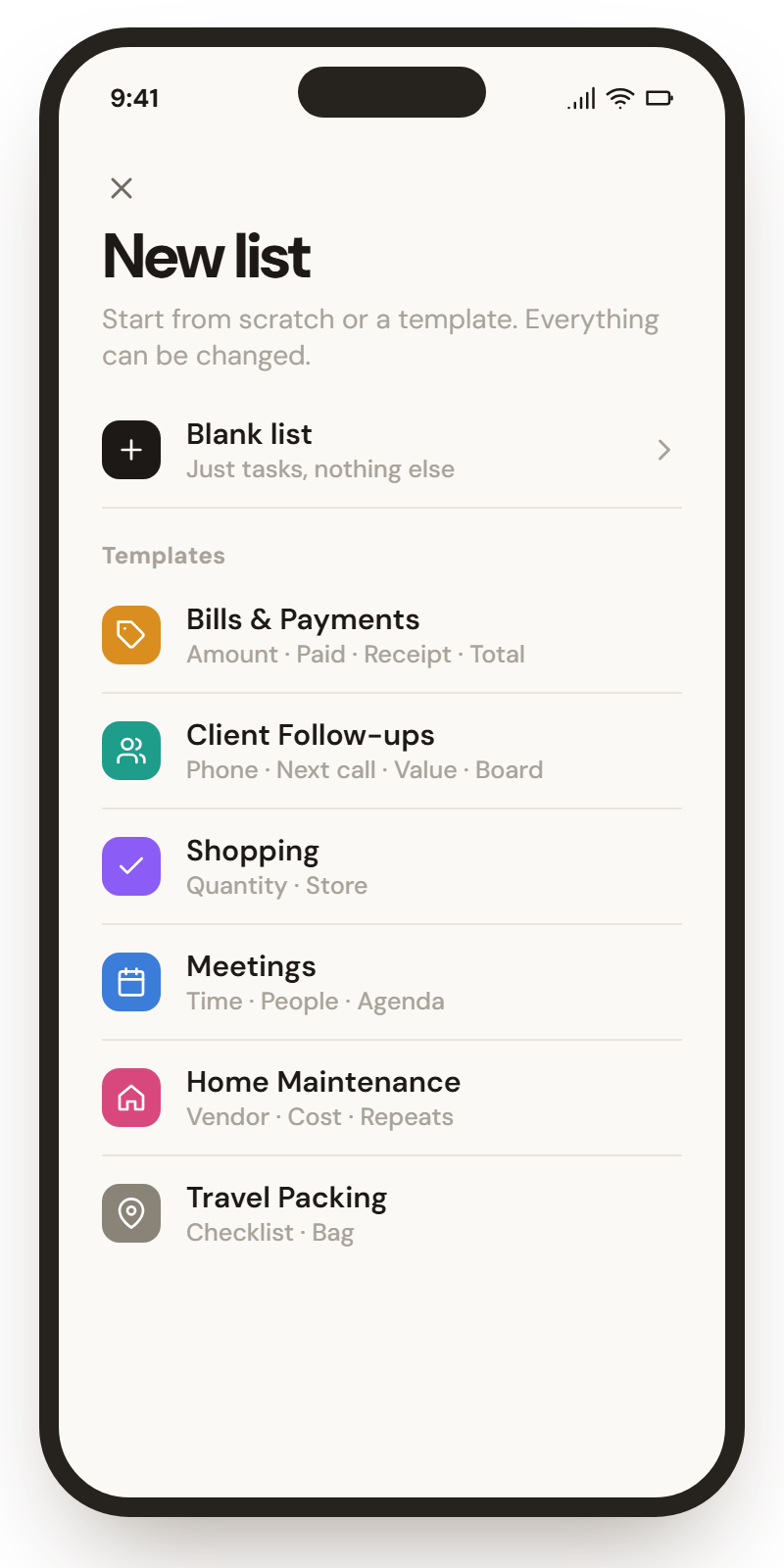
Start in seconds with a ready-made list
Each template brings the fields and statuses that make sense. Change anything later, or save your own list as a template.
Bills & Payments
Never miss a due date. Reminds you 2 days before and shows what's still unpaid.
Client Follow-ups
Keep every lead moving, with the next call date and the value of open deals.
Office Work
Your work tasks with a simple progress flow, ready for the board view.
Shopping
One tidy list for the market, the pharmacy and online orders.
Home Maintenance
Servicing, repairs and yearly jobs, with who did them and what they cost.
Meetings
Who's coming, what to cover, and the link to join, on one card.
Study
Topics to learn and revise, with links to notes and videos.
Travel Packing
Pack once, reuse every trip. Sort by which bag each item goes in.
Build your own
Start blank and add fields, statuses, the opening view and a total. No coding.
Up and running in a minute
Pick what you'll use it for
Personal, office work, bills, clients, shopping… TaskFlow sets up a list for each and groups them into Work and Life.
Add tasks in one line
Tap the coral button and type. Dates, times, repeats, tags and lists are picked out as you write.
Let TaskFlow remind you
Open Today each morning, or just wait for the reminder. Finish with a swipe, snooze with a tap.
All the small things, done well
Your tasks never leave your phone. Unless you say so.
TaskFlow has no servers and no accounts. We can't see your tasks, so we can't lose, sell or leak them.
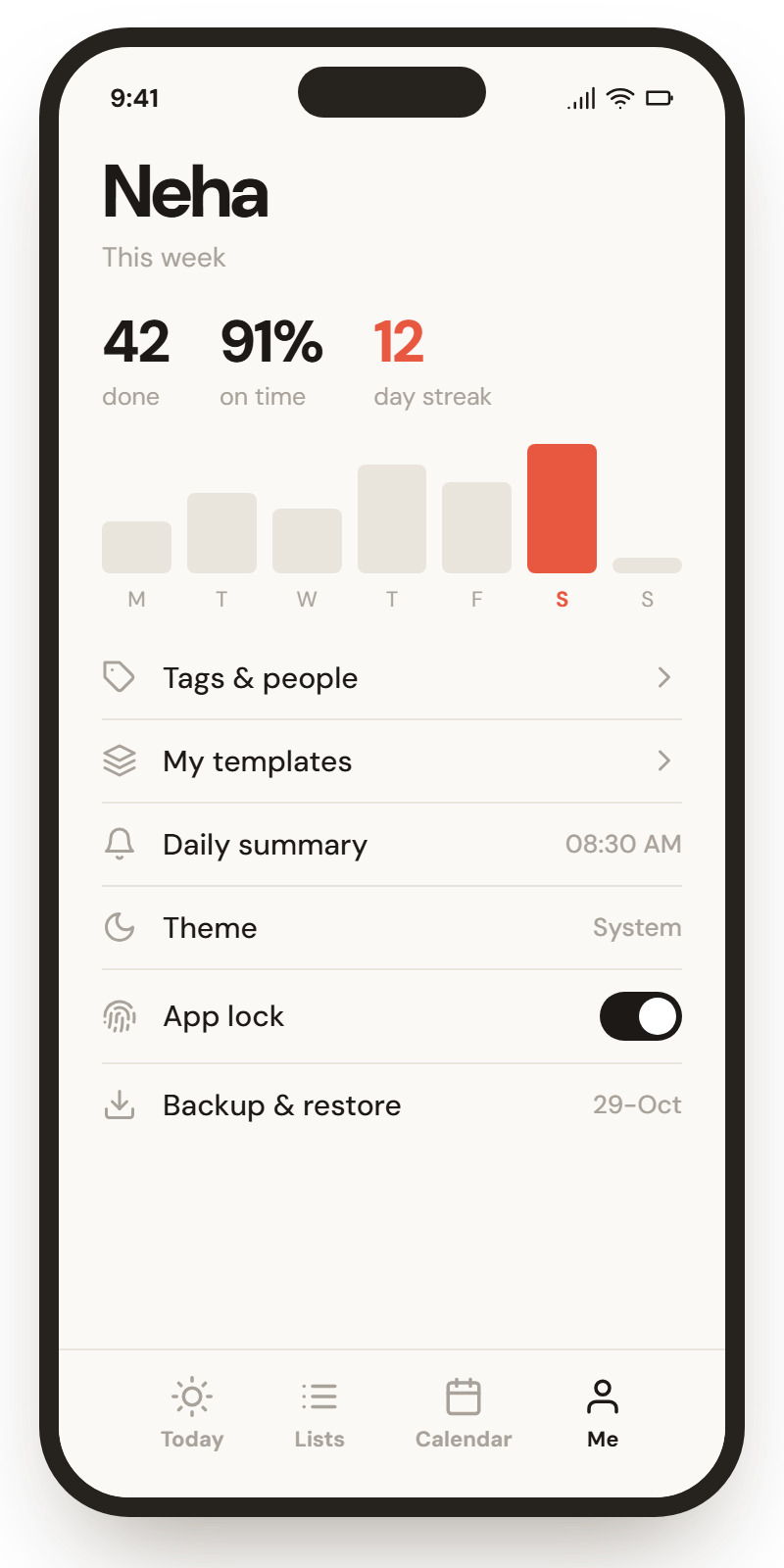
Optional backup to your own Google Drive
Turn it on and TaskFlow saves your data and photos to a private folder in your Drive, after changes and when you leave the app. Only TaskFlow can open that folder, and the backup goes straight from your phone to Google. It never passes through us.
- Me → Backup & restore → Connect Google Drive
- Backups happen on their own from then on
- On a new phone, tap “Have a backup? Restore it”
Quiet, clear and quick
Warm paper tones, generous space and one coral accent for what needs you. In light and dark.
Questions, answered
Is TaskFlow free?
Yes, it is free on Google Play, and there is no account to create.
Do I need internet?
No. TaskFlow works fully offline, including reminders. Internet is used only if you turn on Google Drive backup or open a link saved in a task.
My reminders come late or not at all. What can I do?
Some phones pause apps to save battery. In TaskFlow open Me → Reminders and tap Allow under “On-time reminders”: allow “Alarms & reminders”, then let TaskFlow run in the background (“Unrestricted” or “Allow background power usage”). On some phones (vivo, Xiaomi, Oppo, Realme) also turn on Auto-start for TaskFlow.
How do I move my tasks to a new phone?
On the old phone, open Me → Backup & restore and connect Google Drive (or save a backup file). On the new phone, install TaskFlow and tap “Have a backup? Restore it” on the first screen.
Can I create my own kind of list?
Yes. Create a list, open its settings and add fields (amount, phone, dropdown, rating, photo and more), your own statuses, the view it opens in, and a total. You can save it as a template to reuse.
What happens when I finish a repeating task?
The next one is created straight away, with fields such as Amount carried over and Paid cleared. Undo takes the new copy back.
Can I undo a delete?
Yes. Tap Undo right after, or find it in Me → Trash for 30 days.
Is there an iPhone or web version?
Not yet. TaskFlow is on Android first.
How do I contact you?
Write to theinfosharp@gmail.com. We read every message and usually reply within two working days.
Start your calm list today
Free on Google Play. No account, and your tasks stay on your phone.